description: Marking is the first half of Shotwork: in and out points for every shot worth keeping, with no exporting.
Marking shots
Marking is what Shotwork exists for. You open a finished video once and record where each shot you care about starts and ends. Nothing renders, so the cost of a two-hour film is one open and however long it takes you to watch it.
A shot is an in point, an out point, and whatever you say about it. It lives in a shot list and points back at the source video rather than copying any of it.
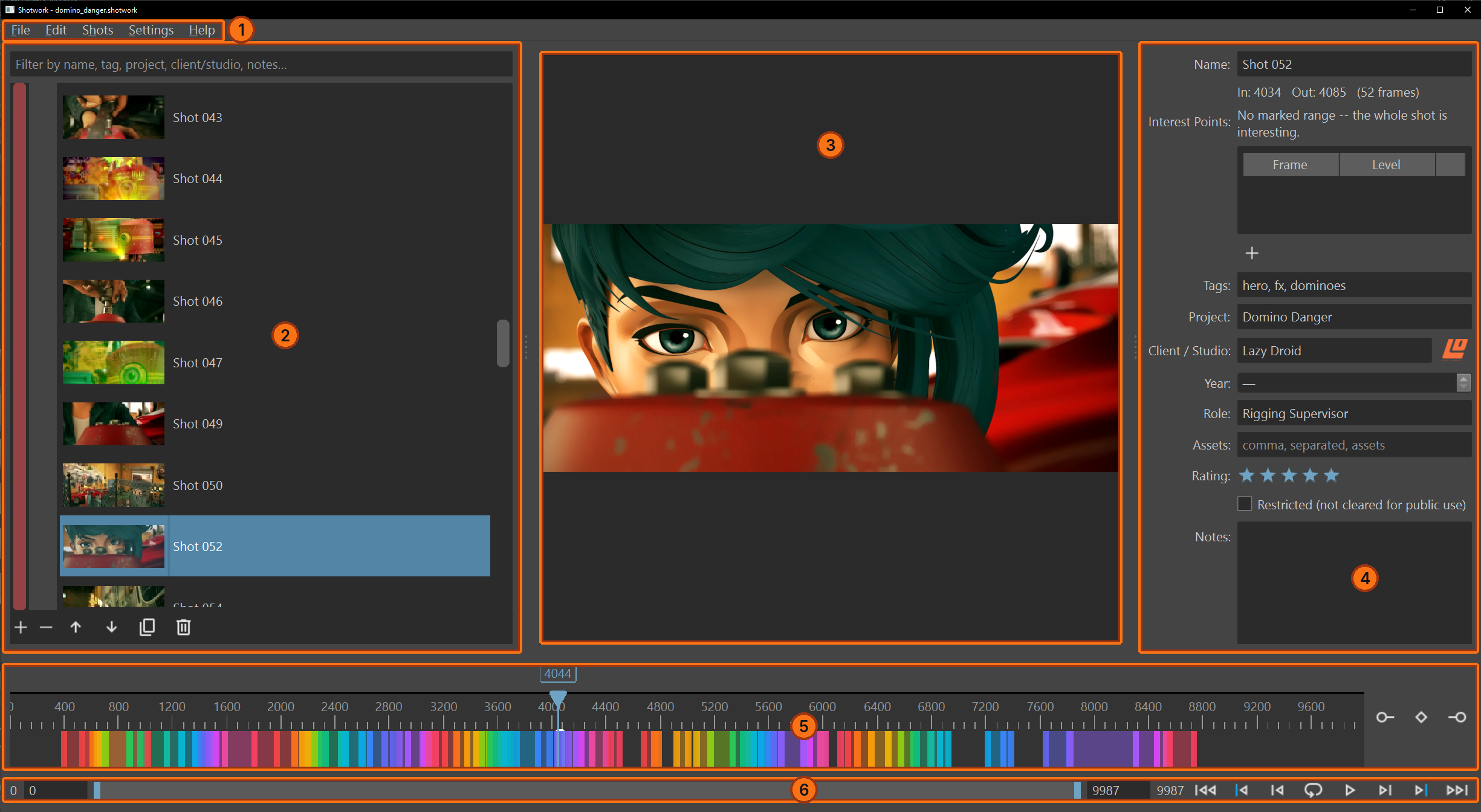
| # | Region | What it holds |
|---|---|---|
| 1 | Menu bar | File, Edit, Shots, Settings and Help. |
| 2 | Shot list | Every source in this shot list, with its shots under it. A filter box sits above it. |
| 3 | Viewer | The current frame of the current source. |
| 4 | Detail panel | The selected shot's name, metadata, rating and interest points. |
| 5 | Source timeline | The whole source end to end, with a band per shot and a playhead. |
| 6 | Transport | Play, step, jump, loop, and the playback range fields. |
A tab bar appears above the shot list once a second document is open, with one tab per shot list or reel. With a single document there is nothing to switch between, so Shotwork hides it. A reel tab lays out differently; see Building a reel.
What this means when you
- ...select a shot: the detail panel fills with that shot's fields, the band lights up on the source timeline, and the viewer jumps to its in point.
- ...select several shots: the detail panel keeps the fields that can be edited for all of them at once, such as tags, project and client, and drops the ones that cannot, such as the name.
- ...select nothing: the detail panel empties and marking keys apply to the source rather than to a shot.
The shot list is one document
A shot list holds more than one source. Open a second video into the same
shot list and it appears as another source with its own shots underneath.
The file on disk carries the .shotwork extension, and it stores paths to
your video files rather than copies of them, so it stays small and the
footage stays where you put it.
Warning
Moving or renaming a source video after marking it breaks the link. Shotwork tells you which file it cannot find and offers to relink it.
Where to start
Start with Open a video and Mark in and out points. The rest of this section is the work that surrounds those two: moving around the source, letting Shotwork propose shots, and describing what you marked.