Logos
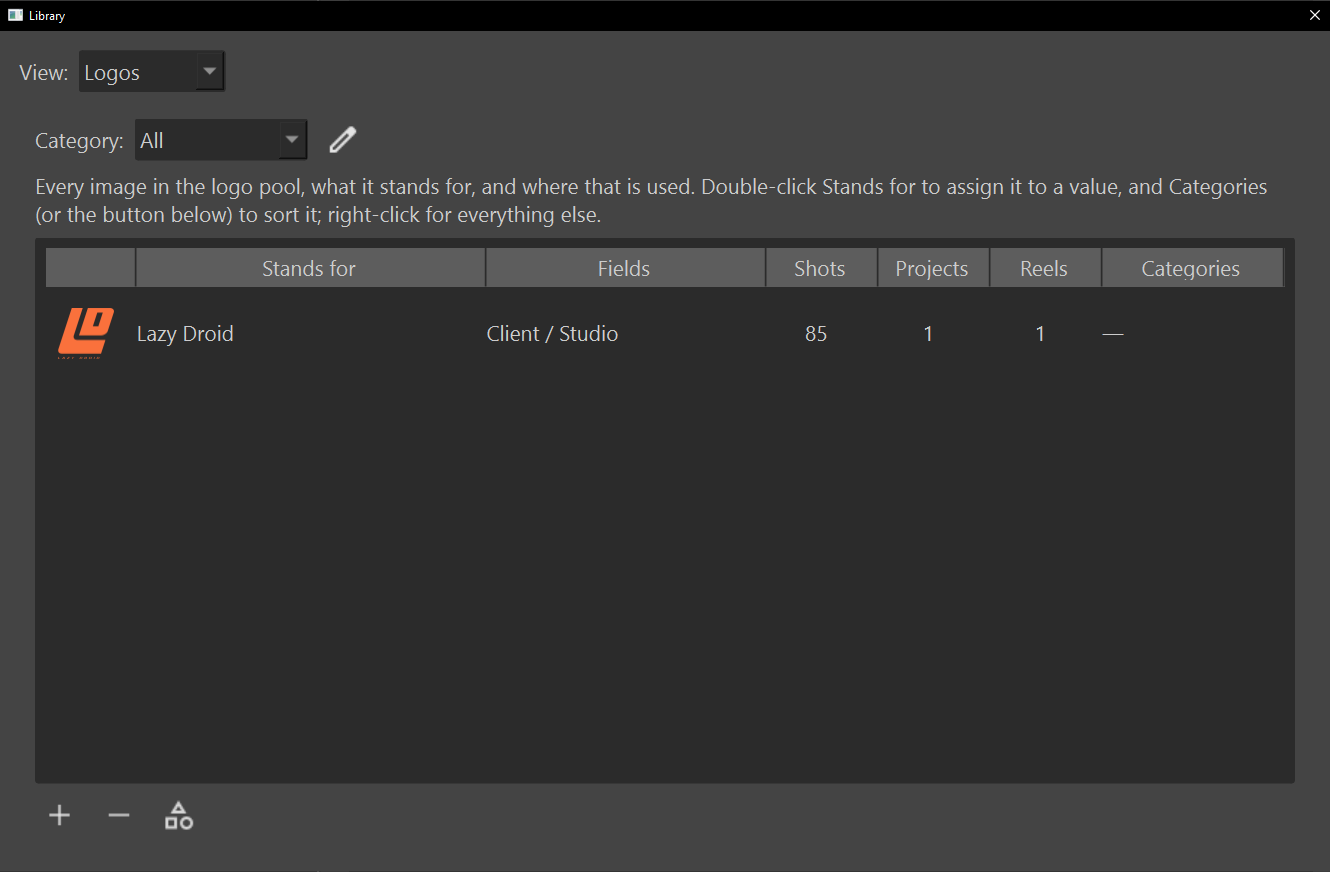
A logo is an image that stands for a value: a studio in Client / Studio, a program in a software field, a school. The Logos view of the Library window holds your pool of images and what each one stands for. The detail panel shows a value's logo beside its field, and an overlay's Client Logo prints it.
Before you start
- The pool is yours. Shotwork ships no logos; you add each image.
- A logo is a PNG, JPEG, BMP or WebP image. PNG with transparency sits best over footage. SVG is not accepted, because the exported video cannot composite it.
Add a logo to the pool
- Choose File › Library…, then Logos in View.
- Choose the + button and pick the image.
The image is copied into the pool, unassigned. Adding the same image again, even under another file name, keeps one copy.
A logo added from a shot's logo button lands here too, already assigned. See Client logos.
Assign a logo to a value
- Double-click the logo's Stands for cell, or right-click the logo and choose Assign to a Value….
- In Assign Logo to a Value, type the value. It suggests every value your library knows, from any field.
- Choose OK.
One image can stand for several values, such as two spellings of a studio's name. Assigning a value that already had a logo replaces that logo. To take a value off an image, right-click the image and choose Unassign from “Lazy Droid”; the value stays, with no picture.
Each row shows what the image Stands for, the Fields those values appear in, and how many Shots, Projects and Reels use them. An unassigned image stays listed, so you can find it and remove it.
Sort logos into categories
Categories are yours: Companies, Software, Schools, whatever helps you find things.
- Select a logo and choose the category button beside + and −, or double-click the logo's Categories cell.
- In Logo Categories, tick the categories it belongs in, or type a new one where it says New category….
- Choose OK.
Right-clicking a logo offers Add to Category and Remove from Category too. Category, above the table, shows every logo, only the Uncategorized ones, or one category, and the logo picker that a shot's logo button opens has the same filter.
To add, rename or remove the categories themselves, choose the edit button beside Category. Removing a category never removes its images, and renaming one onto an existing name merges the two.
Remove a logo from the pool
- Select the logo, then choose the − button, or Remove Image from Pool… on its right-click menu.
- Choose Yes.
If the image is in use, the question names the values it stands for. Those values keep their names and lose the picture, and the image leaves every category. This cannot be undone.
What happens
- A logo belongs to the value, not the field. "Maya" in a software field and in a tools field shows the same image. The flip side is that one name meaning two different things in two fields shares one logo.
- A value with no logo shows nothing, in the detail panel, the template band and overlays alike, and so does a value whose image file has gone from the pool.
- Names match regardless of capitalization.
Where the pool lives
Images are copied into the logos folder of
Shotwork's app data, each named by a
fingerprint of its contents, which is why adding the same image twice
keeps one copy. logos/associations.json records which values each image
stands for and which categories hold it. An older file is upgraded the
next time it is saved, and a missing or damaged one reads as an empty
pool.
Related
- Describe a shot for choosing a logo from a shot.
- Build an overlay template for printing a shot's client logo.
- Field presets for which fields can carry logos.
- The Library window.