Rename and remove field values
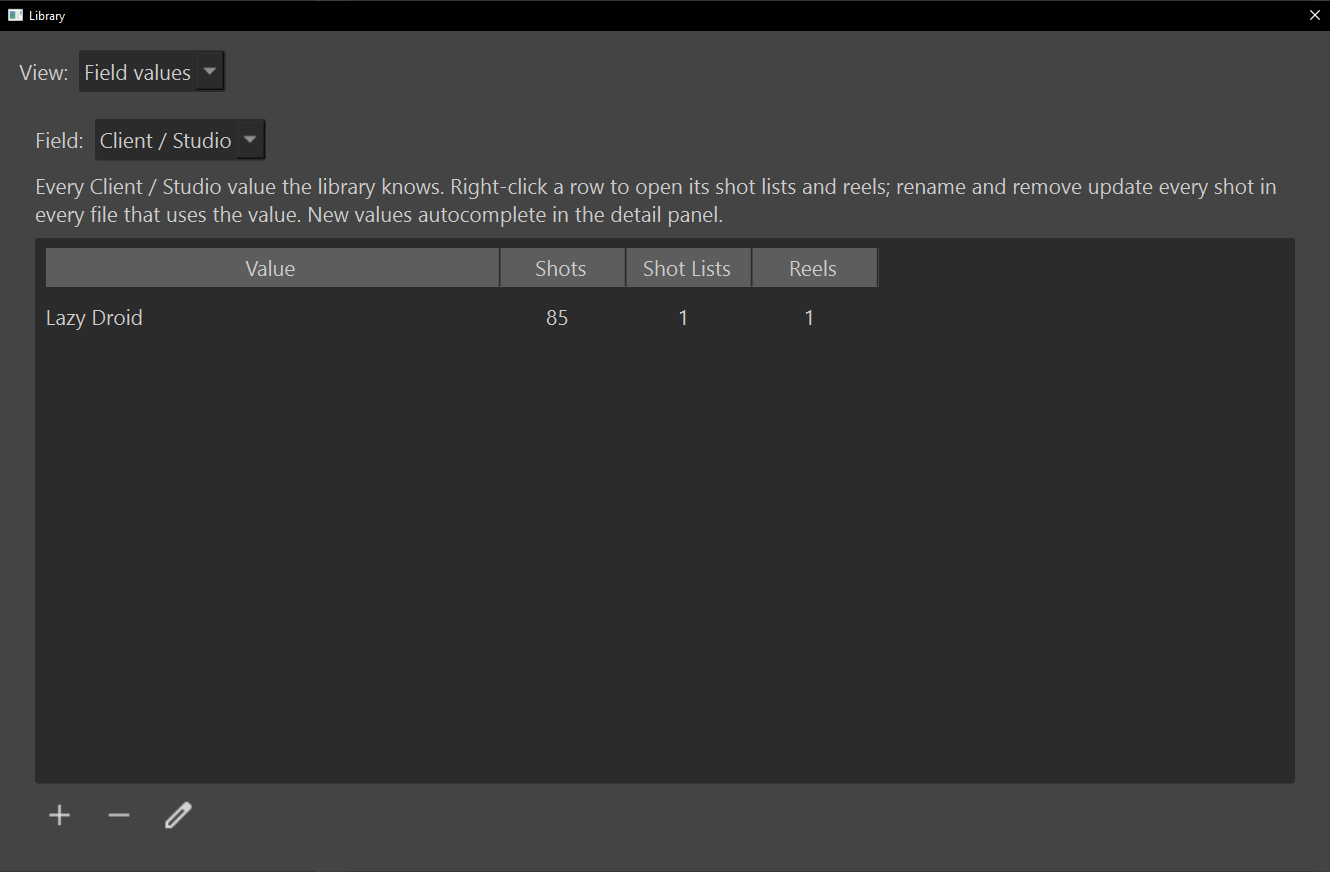
Every field that remembers values keeps a list of what you have typed into it: the list that autocompletes in the detail panel. The Field values view of the Library window shows those lists, and changes a value on every shot that carries it, in every shot list at once.
Before you start
- Every shot list that carries the value must be registered in the Library. One that is not registered is not changed. See The Library window.
- Renaming and removing rewrite files on disk, and cannot be undone with Ctrl+Z.
Find the value
- Choose File › Library…, then Field values in View.
- Pick the field in Field. It opens on Client / Studio.
- Find the value in the table.
Field lists every text and list field that remembers values, from every registered shot list, so a field only one preset has appears once a shot list using that preset is registered. Number fields, such as Year, are not listed.
Each row shows how many Shots, Shot Lists and Reels use the value, most used first. A value you added before any shot uses it is listed last, with no counts.
Right-click a value for Shot Lists (4) and Reels (2), and choose one to open it in a tab.
Rename a value
- Select the value.
- Choose the edit button.
- Type the new name in Rename Client / Studio, and choose OK.
Every shot carrying the value changes, in every registered shot list and in any tab you have open. In a list field such as Assets, only the matching item changes. Capitalization, and spaces at either end, do not count when matching.
If the new name is already a value, Merge Client / Studio Values explains first: every shot using the old value takes the new one. In a field with logos, the surviving value keeps its own logo, and takes the old value's only if it had none.
Remove a value
- Select the value.
- Choose the − button.
For a value no shot uses, Shotwork asks whether to remove it; choose Yes and it stops autocompleting. Its logo image, if it had one, stays in the pool.
For a value shots still use, the dialog lists each shot list and how many of its shots carry the value, and asks where those shots go:
- In Reassign those shots to, pick another value, or (clear the field) to leave the field empty.
- Choose OK.
Add a value
- Choose the + button.
- Type the name, and choose OK.
The value autocompletes in the detail panel from then on, before any shot uses it. Adding a value that already exists, in any capitalization, does nothing.
What happens
- Only files where something changed are saved. An open tab with unsaved changes keeps them, with the new value applied, so it cannot save the old value back.
- A shot list that could not be read is named afterward in Some projects were skipped, because it may still hold the old value.
- Remembered values only grow on their own. A value stays in the list after the last shot using it changes, until you remove it here.
- Capitalization does not make a new value. The casing typed first is the one kept.
- Tags have their own remembered list, which this view does not show.
Related
- The Library window for registering shot lists.
- Logos for the images a value can wear.
- Describe a shot for where values are typed.
- Field presets for which fields remember their values.