Install Shotwork
Installing Shotwork is two things: getting the application onto your machine, and letting it fetch the two pieces of video software it works through.
Packaged installers do not exist yet
Shotwork is not yet built into a .exe or a .dmg. Until it is, the
only way to run it is from source, which is the first section below.
This page will be rewritten around the installer when there is one; the
component downloads in the second half will not change.
Run from source
- Install Python 3.11 or newer. On the installer's first screen, turn on Add python.exe to PATH before choosing Install Now.
- Get the Shotwork source folder onto your machine.
- Open a terminal in that folder. In File Explorer, click the address
bar, type
cmd, and press Enter. -
Create a virtual environment. This is a private copy of Python for this one project, so its libraries cannot collide with anything else you have installed:
python -m venv .venv -
Install Shotwork and everything it depends on into that environment:
.venv\Scripts\python.exe -m pip install -e .This prints a long list of packages and ends with
Successfully installed .... It takes a few minutes the first time. -
Run it:
.venv\Scripts\python.exe -m shotwork.app
- Install Python 3.11 or newer.
- Get the Shotwork source folder onto your machine.
- Open Terminal and
cdto that folder. -
Create a virtual environment, a private copy of Python for this one project:
python3 -m venv .venv -
Install Shotwork and its dependencies into it:
.venv/bin/python -m pip install -e . -
Run it:
.venv/bin/python -m shotwork.app
Tip
-e installs in editable mode, meaning the installed copy points at the
source folder rather than copying it. Pulling a newer version of the
source is then all you need; there is no reinstall step.
The two components
Shotwork does not bundle the software that decodes and encodes video, and it does not download anything without being told to. Both components are fetched from their official source, once, the first time you need them.
| Component | What it does | When Shotwork asks |
|---|---|---|
| libmpv | Plays video in the viewer | The first time you open a video |
| ffmpeg | Thumbnails, previews, exports, and music analysis | The first time one of those runs |
Each opens its own dialog, titled Download ffmpeg or Download libmpv, naming the exact URL it will fetch from and linking that component's license. Choose Download to proceed, or Cancel to decline and go without the feature that needed it.
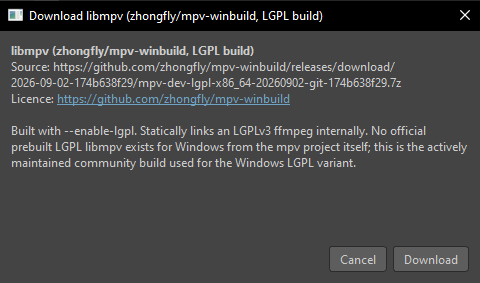
The component is unpacked into Shotwork's own application data folder and remembered, so the dialog does not come back.
Note
If you already have ffmpeg installed and on your PATH, Shotwork finds
and uses it instead of downloading a second copy. Neither component is
ever installed system-wide by Shotwork.
Why these are downloads and not part of Shotwork
Both are separately licensed projects. Fetching them at your request, from their own official builds, keeps Shotwork's licensing clean and lets you see exactly what you are getting and under what terms. The alternative, bundling them, would put Shotwork in the business of redistributing someone else's binaries.
Where Shotwork keeps its files
| Holds | Windows | macOS |
|---|---|---|
| Settings, hotkeys, the library, downloaded components, caches | %LOCALAPPDATA%\Shotwork |
~/Library/Application Support/Shotwork |
Your shot lists, reels and video files are not in there. Those live wherever you saved them.
Setting the SHOTWORK_DATA_DIR environment variable moves that whole folder,
which is useful for keeping a test setup away from your real one.
Related
- First launch is what happens the first time it opens.
- Marking shots names the regions you will be working in.